
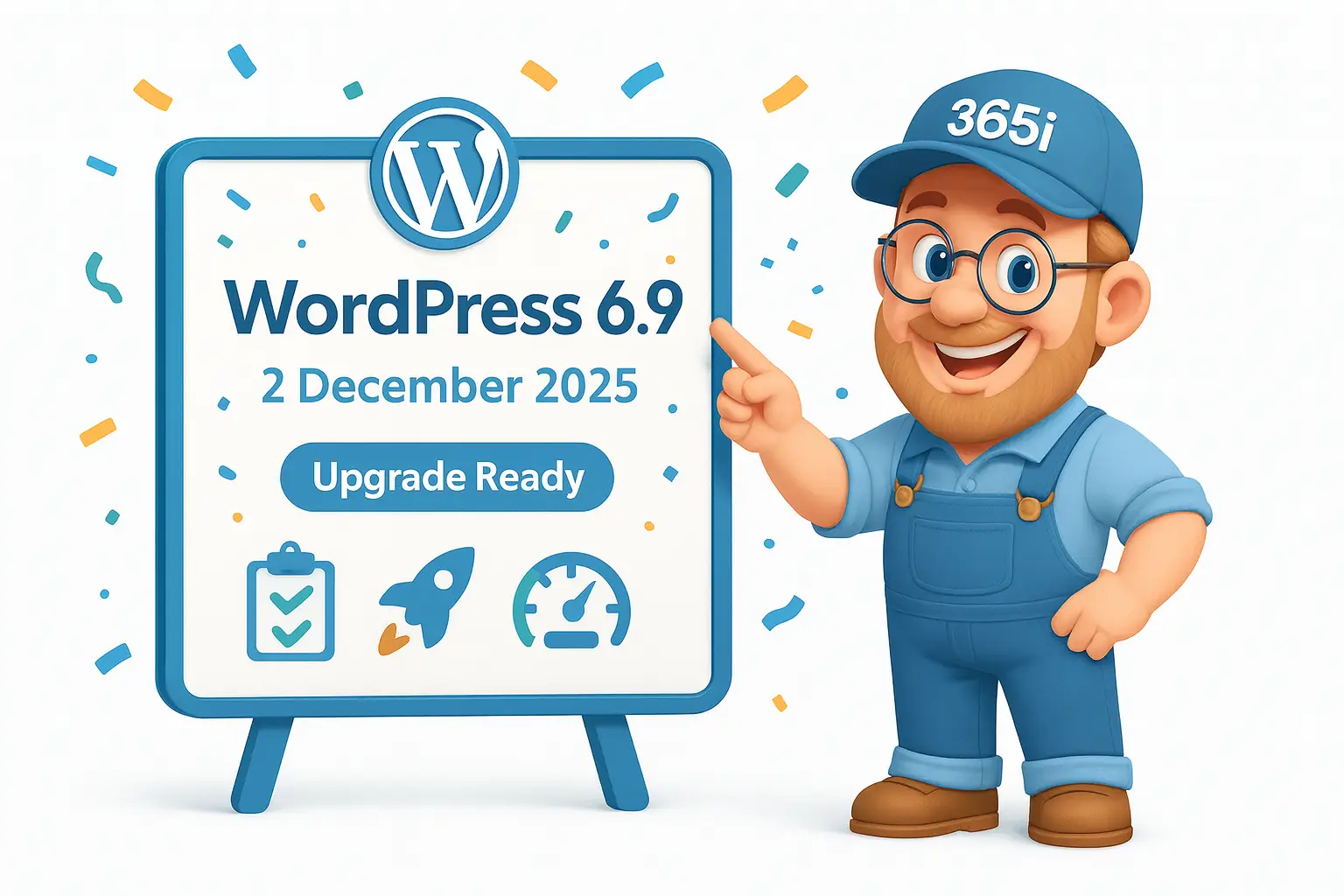
Right, if you're looking for a comprehensive WordPress 6.9 upgrade guide, you've come to the right place. WordPress 6.9 lands on 2nd December 2025, and whilst this update brings brilliant new features, the upgrade process requires careful planning to avoid the disasters that keep hosting providers awake at night.
This WordPress 6.9 upgrade guide covers everything you need for a safe, successful update: from pre-upgrade preparation and staging environment setup to post-installation optimization and troubleshooting. Whether you're upgrading a single site or managing multiple WordPress installations, the upgrade process detailed here will ensure you benefit from WordPress 6.9's improvements without the headaches.
I've been testing the betas since October, and I can tell you that whilst 6.9 is brilliant, there are specific steps you absolutely must follow to avoid the WordPress update disasters that keep me awake at night. This WordPress 6.9 installation process is particularly crucial given that WordPress powers 43.4% of all websites — meaning millions of sites will be going through this upgrade process.
Interestingly, WordPress 6.9 almost didn't happen this year. As Trew Knowledge reports, "Originally slated for an August release, the version was briefly shelved when project leadership considered shifting to a single major release per year" due to "organizational tensions" and "ongoing legal matters" — a reference to the WP Engine lawsuit. However, after "vocal community feedback from core committers and a renewed commitment from major contributors, WordPress 6.9 was revived."
If you've been following our previous coverage, you might remember our earlier analysis of WordPress 6.9's delayed timeline, where we explored the uncertainty around whether this release would even happen in 2025. Now that it's confirmed, we've also published a detailed overview of WordPress 6.9's arrival and features that complements this comprehensive upgrade guide.
Let's dive into what makes this WordPress update special and how to upgrade without breaking your site.
Table of Contents
- WordPress 6.9 Release Timeline: Plan Your Upgrade
- What's Actually New in WordPress 6.9
- Your Pre-Upgrade Checklist: Essential WordPress 6.9 Preparation
- The Safe WordPress 6.9 Upgrade Process: Step by Step
- Post-Upgrade Optimisation and Testing
- Troubleshooting Common WordPress 6.9 Upgrade Issues
- Security Considerations for WordPress 6.9
What's Actually New in WordPress 6.9
Simplified Editing Mode That Actually Makes Sense
The biggest game-changer in WordPress 6.9 is the simplified editing mode in the Site Editor. Finally, WordPress acknowledges that not everyone wants to see every possible design option when they're just trying to write a blog post.
This streamlined interface emphasises content creation over design fiddling. Your content team gets a distraction-free writing environment, whilst design controls are still there — just tucked away behind a toggle. According to the official WordPress 6.9 roadmap, this "simplified editing mode" is designed to make "writing rich content much simpler" by reducing visual clutter whilst maintaining functionality.
Block-Level Commenting for Team Collaboration
WordPress 6.9 introduces something content teams have been crying out for: the ability to comment on specific blocks within the editor. No more screenshots with arrows pointing at problematic sections or lengthy email chains trying to describe "that bit in the third paragraph."
According to WPExperts' analysis, this feature enables "collaborative content creation with the help of block-level commenting, which enhances developer capabilities" and represents a significant step forward in WordPress's team collaboration tools.
Template Management That Doesn't Drive You Mental
Template management gets a proper overhaul in WordPress 6.9. According to Trew Knowledge's comprehensive analysis, you can now:
- Create multiple templates per slug
- Activate and deactivate templates with ease
- Draft templates before publishing them
- Retain custom templates when switching themes
Previously, switching themes meant losing all your carefully crafted template customisations. Now, WordPress preserves your templates, making theme changes far less terrifying.
Performance Improvements You'll Actually Notice
WordPress 6.9 builds on the speculative loading introduced in 6.8 and adds some seriously impressive performance enhancements. According to WPExperts' technical analysis, these improvements include:
Instant Page Transitions: Pages load so quickly they feel instant, even when navigating back through browser history.
Smarter Resource Handling: Trew Knowledge reports "improvements to styles and script handling, including minification and inlining" that make resources load more efficiently.
Enhanced Data Fetching: The admin area feels noticeably snappier, particularly for complex sites with lots of content.
Output Buffer Optimisation: Better compatibility with caching plugins and third-party performance tools.

Your Pre-Upgrade Checklist: Essential WordPress 6.9 Preparation
Before beginning your WordPress 6.9 installation, proper preparation prevents the upgrade disasters that turn a simple update into a weekend emergency. This WordPress 6.9 upgrade checklist ensures your site survives the update process intact.
Create a Proper Staging Environment for WordPress 6.9 Testing
Listen, I cannot stress this enough: never install WordPress 6.9 on a live site without testing first. The number of panicked support tickets I receive from people who've broken their sites during WordPress updates is honestly heartbreaking.
Here's your WordPress 6.9 upgrade preparation checklist:
- Create a complete site backup — database, files, everything
- Set up a staging subdomain (staging.yourdomain.com works perfectly)
- Copy your live site to staging using your hosting provider's tools
- Test the staging site thoroughly to ensure it's an exact replica
- Document any custom modifications you've made to themes or plugins
If you're with 365i's WordPress hosting, this entire process takes about three clicks. Our staging environments are isolated copies of your live site, complete with the same server configuration and performance optimisations.
Plugin and Theme Compatibility Check
WordPress 6.9 introduces several new APIs and changes how certain functions work. Before upgrading, you need to verify that your critical plugins and themes are compatible.
Essential plugins to check first:
- Page builders (Elementor, Divi, Beaver Builder)
- SEO plugins (Yoast, RankMath, All in One SEO)
- Caching plugins (WP Rocket, W3 Total Cache)
- Security plugins (Wordfence, Sucuri)
- E-commerce plugins (WooCommerce, Easy Digital Downloads)
Visit each plugin's WordPress.org page or official website to check for WordPress 6.9 compatibility statements. If a plugin hasn't been updated recently or lacks compatibility information, consider finding alternatives before upgrading.
Performance Baseline Establishment
Before upgrading, establish performance baselines so you can measure the impact of WordPress 6.9's improvements:
- Run a speed test using GTmetrix, Pingdom, or Google PageSpeed Insights
- Document your Core Web Vitals scores
- Test your site's loading speed from multiple geographic locations
- Check mobile performance separately from desktop
Save these results — you'll want to compare them after upgrading to see the performance improvements WordPress 6.9 delivers.
For comprehensive guidance on WordPress performance optimization, our WordPress Performance & Security Guide 2025 covers essential baseline testing and optimization strategies that work excellently alongside WordPress 6.9's new features.
The Safe WordPress 6.9 Upgrade Process: Step by Step
This comprehensive WordPress 6.9 installation guide covers three proven methods for upgrading to WordPress 6.9 safely. Choose the approach that best fits your technical comfort level and site requirements.
Method 1: WordPress 6.9 Automatic Update with Caution
If you're comfortable with WordPress updates and your site uses standard plugins and themes, the automatic WordPress 6.9 update process is more reliable than ever:
- Verify your staging environment is working correctly
- Enable automatic updates in your WordPress dashboard
- Schedule the update for a low-traffic period (typically 2-3 AM local time)
- Monitor the update process — don't close your browser tab
- Test your site immediately after the update completes
The automatic updater in WordPress 6.9 includes better error handling and rollback capabilities, but you should still monitor the process carefully.
Method 2: Manual WordPress 6.9 Installation for Maximum Control
For sites with complex customisations or critical uptime requirements, manual WordPress 6.9 installation offers more control over the upgrade process:
- Download WordPress 6.9 from WordPress.org
- Extract the files to a temporary directory
- Upload files via FTP/SFTP to your staging environment first
- Test thoroughly on staging before touching your live site
- Replicate the process on your live site during maintenance windows
This method takes longer but gives you complete control over the timing and process.
Method 3: Hosting Provider Managed Updates
Premium hosting providers often offer managed update services that handle the technical details whilst keeping you informed:
With 365i's managed WordPress updates, our team handles the entire upgrade process. We test the update on your staging environment, verify compatibility, and perform the live site upgrade during your preferred maintenance window. If anything goes wrong, we roll back immediately and investigate the issues.

Post-Upgrade Optimisation and Testing
Immediate Post-Upgrade Checks
📋 CRITICAL: Once WordPress 6.9 is installed, don't celebrate just yet. You need to verify everything is working correctly before announcing success.
Critical functionality tests:
- Homepage loads without errors
- User login and registration work
- Contact forms submit successfully
- E-commerce checkout process functions
- Search functionality operates correctly
- Image uploads and media library access
Performance verification:
- Run speed tests and compare to your baseline
- Check Core Web Vitals improvements
- Test the new performance features like instant page transitions
- Verify caching plugins are working correctly
WordPress 6.9's performance improvements particularly benefit Core Web Vitals scores. If you're dealing with INP (Interaction to Next Paint) issues, our guide on fixing WordPress INP issues in PageSpeed Insights provides specific optimization techniques that work brilliantly with WordPress 6.9's instant page transitions.
Optimising for WordPress 6.9's New Features
To get the most from WordPress 6.9's improvements, you may need to adjust your site configuration:
Enable the simplified editing mode for content creators who don't need full design access. This reduces cognitive load and speeds up content creation workflows.
Configure block-level commenting if you work with content teams. Set up user roles and permissions to control who can comment and who can respond.
Optimise template management by consolidating redundant templates and creating draft versions for experimental layouts.
Test the performance improvements with real user scenarios, not just synthetic benchmarks.
CDN and Caching Configuration
WordPress 6.9's performance improvements work brilliantly with properly configured CDNs and caching:
If you're using 365i's free global CDN, the new performance features integrate seamlessly with our edge caching and automatic optimisations. The instant page transitions feel even faster when combined with CDN pre-caching.
For sites using other CDN providers, you may need to adjust cache headers and purging rules to accommodate WordPress 6.9's new navigation algorithms.

Troubleshooting Common WordPress 6.9 Upgrade Issues
Even with thorough testing, WordPress 6.9 installation problems can emerge after upgrading. Here's how to diagnose and resolve common WordPress update issues:
Plugin Conflicts and Resolution
Even with thorough testing, plugin conflicts can emerge after upgrading to WordPress 6.9. Here's how to diagnose and resolve them:
The systematic approach:
- Deactivate all plugins except WordPress core
- Test your site — if problems persist, it's likely a theme issue
- Reactivate plugins one by one until you identify the problematic plugin
- Check for plugin updates that add WordPress 6.9 compatibility
- Contact plugin developers if no updates are available
Common conflict indicators:
- White screen of death (WSOD)
- Database connection errors
- Broken layouts or missing functionality
- Admin dashboard access issues
- Performance degradation
Theme Compatibility Problems
WordPress 6.9's changes to the Site Editor and template system can cause issues with older themes:
Symptoms of theme incompatibility:
- Broken template layouts
- Missing template options
- Simplified editing mode not working correctly
- Block editor functionality problems
Resolution steps:
- Switch to a default WordPress theme (Twenty Twenty-Four or Twenty Twenty-Five)
- Test your site functionality with the default theme
- Contact your theme developer for WordPress 6.9 compatibility updates
- Consider theme alternatives if updates aren't available
Performance Issues After WordPress 6.9 Installation
Whilst WordPress 6.9 generally improves performance, some configurations may experience issues after the update process:
Common performance problems:
- Slower page loading after enabling new features
- Increased memory usage
- CDN compatibility issues
- Caching plugin conflicts
Diagnostic steps:
- Disable new WordPress 6.9 features temporarily to isolate the issue
- Check server resource usage for memory or CPU spikes
- Review error logs for specific error messages
- Test with caching disabled to identify caching-related problems

Security Considerations for WordPress 6.9
WordPress 6.9 includes several security improvements that require configuration. Enhanced user permission controls for the new collaborative features ensure that block-level commenting doesn't introduce security vulnerabilities, whilst improved template security prevents unauthorised template modifications whilst maintaining flexibility for authorised users.
Post-WordPress 6.9 Upgrade Security Checklist
After completing your WordPress 6.9 installation, verify your security measures are still effective:
- Update all security plugins to versions compatible with WordPress 6.9
- Review user permissions for new collaborative features
- Test login security to ensure two-factor authentication still works
- Verify backup systems are capturing the new WordPress 6.9 data structures
- Check firewall rules for compatibility with new APIs
For comprehensive WordPress security strategies that complement WordPress 6.9's new collaborative features, our AI WordPress Security 2025 guide covers advanced protection techniques and security best practices for modern WordPress installations.
WordPress 6.9 represents a significant step forward in content management system evolution. The collaborative features, performance improvements, and simplified editing experience make it a compelling WordPress update for virtually every WordPress site. However, the WordPress 6.9 installation process itself can make or break your site's performance and user experience.
The investment in proper staging environments, thorough compatibility testing, and systematic WordPress 6.9 upgrade processes pays dividends in site reliability and user satisfaction. WordPress 6.9's improvements are substantial enough to justify careful upgrade planning and preparation.
Ready to follow this WordPress 6.9 upgrade guide safely? Our WordPress hosting specialists are standing by to help with staging environment setup, compatibility testing, and managed WordPress 6.9 upgrade services. Don't leave your WordPress 6.9 installation to chance — get expert support that ensures your site benefits from every improvement whilst maintaining perfect uptime.
WordPress 6.9 launches 2nd December 2025. Start your WordPress upgrade preparation today, and you'll be ready to take advantage of every new feature from day one.
When is WordPress 6.9 released and what's the upgrade timeline?
What are the key new features in WordPress 6.9?
How do I safely upgrade to WordPress 6.9?
What should I check before upgrading to WordPress 6.9?
What performance improvements does WordPress 6.9 offer?
How do I troubleshoot WordPress 6.9 upgrade issues?
What security considerations apply to WordPress 6.9?
What should I do immediately after upgrading to WordPress 6.9?
Learn more about our WordPress Hosting and WordPress Turbo Hosting services.