
Right, WordPress 6.9 Beta 1 landed on 21st October, and after spending a few days playing with it, I'm genuinely excited. Not because they've added loads of flashy features nobody asked for, but because they've actually fixed things that were annoying and made WordPress feel... well, nicer to use.
After months of drama about whether we'd even get this update (long story involving legal battles and resource shortages), the WordPress team's delivered something properly useful. They've focused on making everyday tasks smoother, adding collaboration tools that actually work, and—this is the clever bit—preparing WordPress for an AI-powered future without forcing it down your throat.
Let me walk you through what you'll actually notice when WordPress 6.9 arrives on 2nd December, and more importantly, whether you should care.
Table of Contents
- When's It Coming?
- The Big Changes You'll Actually Notice
- Your New Favourite Keyboard Shortcut
- Making WordPress Faster (For Real This Time)
- Working With Your Team Just Got Easier
- New Blocks That Are Actually Useful
- Should You Test It Now?
- What Your Website Host Needs to Support This
When's It Coming?
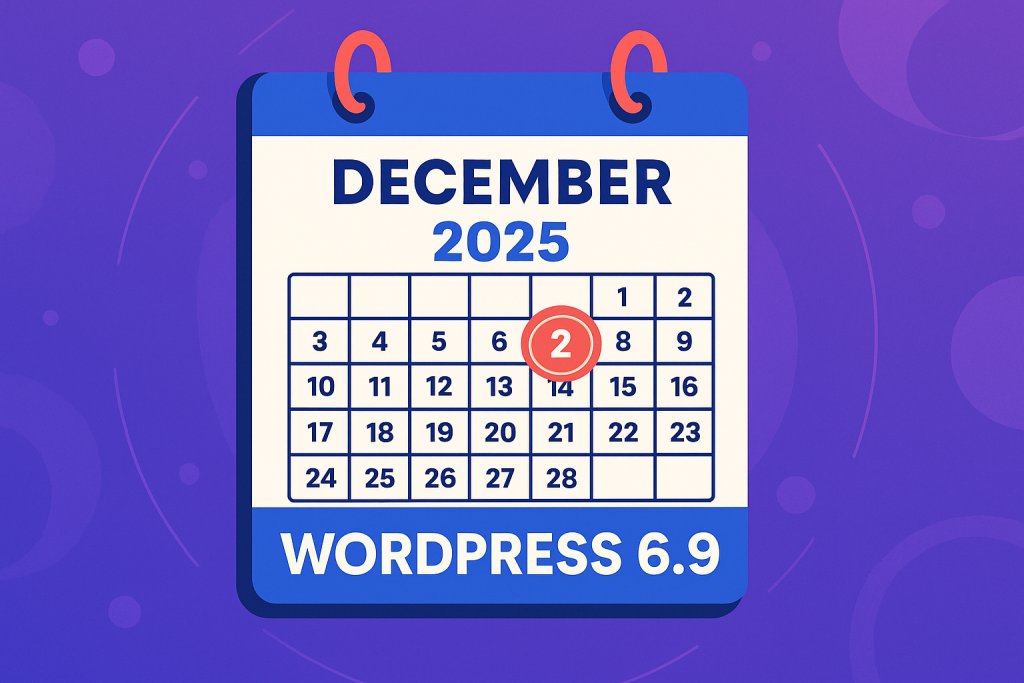
Tuesday, 2nd December 2025 – that's when WordPress 6.9 officially launches. Circle it on your calendar.
This is the last major WordPress update of 2025, which is why the team's taking their time to get it right. They're currently in the beta testing phase (we're on Beta 1 as of 21st October), with a few more betas and release candidates between now and December to squash bugs and polish everything.
"WordPress 6.9 is scheduled for release on December 2, 2025. As the final major release of 2025, 6.9 will deliver key improvements to site editing, new developer tools, and performance refinements, all aimed at making WordPress more powerful and delightful to use."
— Make WordPress Test
What does this mean for you? Don't panic and update immediately on the 2nd. Give it a week or two for any initial hiccups to get sorted, then update when you've got a proper backup and time to check everything works. More on that later.
Interesting bit of history: WordPress 6.9 was nearly cancelled this year due to some corporate drama and resource issues. But the community rallied, and here we are. Goes to show how much people care about WordPress staying brilliant.
The Big Changes You'll Actually Notice
Let me cut through the technical waffle and tell you what you'll actually experience day-to-day:
1. WordPress Feels Faster
Your site will load quicker, especially when visitors use the back button. WordPress has added clever caching that makes pages appear instantly when someone navigates back to a page they've already seen. It's one of those improvements where you don't realise how annoying the old way was until you experience the new one.
2. A Magic Search Box Everywhere
Press Ctrl+K (or ⌘+K on Mac) from anywhere in WordPress admin and you get a search box that lets you jump to any page, post, or setting instantly. Want to create a new post? Ctrl+K, type "new post", done. Need to check your plugins? Ctrl+K, type "plugins", bang.
Once you've used it for a day, going back feels like walking through treacle.
3. Leave Comments on Specific Bits of Content
If you work with a team, this is brilliant. You can now leave comments attached to individual blocks (like paragraphs, images, or headings) rather than vague feedback in emails saying "fix the bit about dogs" when there are three bits about dogs.
4. Hide Stuff Without Deleting It
Sometimes you want to hide content temporarily—seasonal promotions, events that have passed, or content you're not ready to publish. Now you can hide blocks from your live site whilst keeping them in your editor. No more deleting things and hoping you remember to recreate them later.
5. New Blocks That Don't Require Plugins
- Accordion – Create those click-to-expand sections everyone loves
- Time to Read – Add "5 min read" indicators like Medium
- Math Block – For equations (if that's your thing)
- Terms Query – Display your categories or tags in fancy layouts
6. Better Template Management
You can now save multiple versions of templates and switch between them, plus save templates as drafts before publishing them. This means less "oh god I've broken the entire site" panic when redesigning things.
Your New Favourite Keyboard Shortcut
This is going to become your favourite WordPress feature. I promise.
What It Does
Remember how annoying it is to click through multiple menus just to create a new page or check your comments? The Command Palette solves this. Press Ctrl+K (Windows) or ⌘+K (Mac) and you get an instant search box that lets you:
- Jump to any WordPress screen (Posts, Pages, Plugins, Settings, etc.)
- Create new posts or pages
- Search for specific content
- Execute actions without hunting through menus
"The Command Palette is no longer confined to the Site Editor. Navigation commands are now available across screens, bringing keyboard-driven navigation to the entire WordPress admin."
— WordPress Developer Blog
Why This Actually Matters
If you manage your own WordPress site or work on client sites regularly, this will save you hours over the course of a year. Instead of:
- Clicking "Posts"
- Hovering over "Add New"
- Clicking "Add New"
- Waiting for the page to load
You just press Ctrl+K, type "new post", press Enter. Done in two seconds.
It's like discovering you can Ctrl+F to search a page instead of scrolling—once you know it exists, not using it feels ridiculous.
Learn This Shortcut First
When WordPress 6.9 lands, this is the first thing you should learn. Not because I'm telling you to, but because after using it for a day, you'll genuinely wonder how you managed before.
Think of it like learning Ctrl+C and Ctrl+V for copy-paste. Remember when you used to right-click for everything? Exactly.
Making WordPress Faster (For Real This Time)
Every WordPress update claims to make things faster. Usually, "faster" means "we shaved 0.02 seconds off something you'll never notice." But WordPress 6.9 actually delivers improvements you'll feel.
Instant Back Button Navigation
You know how you click a link on a website, read the page, then hit back... and have to wait for the previous page to reload all over again? Properly annoying, especially on slower connections.
WordPress 6.9 fixes this with something called the Navigation API. When someone clicks "back," they see the previous page instantly—no reloading, no waiting, just bang, there it is.
"The Navigation API brings instant back-forward navigation to the browser. When users navigate back and forth, they should experience a near-instantaneous page load — like opening a new tab. In WordPress 6.9, the Navigation API is available for Classic Themes as well, bringing instant navigation to the entire ecosystem."
— WordPress Developer Blog
Why this matters: Faster navigation means people stick around longer. Google notices when visitors don't immediately bounce back to search results, which helps your rankings. Plus, your visitors have a nicer time, which is the actual point.
Faster Block Editor Performance
If you've ever worked on a long post with loads of blocks and noticed things getting a bit sluggish, WordPress 6.9 addresses this. The editor now handles complex pages better, especially when you're inserting blocks, moving things around, or undo-ing changes.
You won't necessarily notice this if you write short blog posts. But if you're building landing pages with dozens of blocks, custom layouts, and lots of media, the difference is genuinely noticeable.
What Your Hosting Actually Does Here
Here's the thing: WordPress 6.9's improvements help, but they're only part of the speed equation. Your hosting setup makes a massive difference.
At 365i, we've optimised our WordPress hosting specifically for these kinds of improvements:
- Edge caching with our CDN means pages load instantly from servers near your visitors
- PHP 8.4 support (latest stable version) runs WordPress's new code faster
- NVMe SSD storage means database queries that WordPress 6.9 relies on happen in milliseconds, not seconds
- Object caching reduces repeated database queries, which matters more as WordPress gets more complex
WordPress 6.9 lays brilliant foundations, but without proper hosting infrastructure, you won't see the full benefits. It's like having a Ferrari with budget tyres—yeah, it's fast, but you're missing half the point.
Working With Your Team Just Got Easier
If you're a solo blogger, you can skip this section. But if you work with writers, editors, designers, or clients who need to review content, these features solve real problems.
Block-Level Comments
Previously, if someone needed to leave feedback on specific content, you'd get vague comments like:
- "The bit about pricing needs updating"
- "Can you change the image?"
- "This paragraph doesn't make sense"
Which paragraph? Which image? The one at the top or the one halfway down?
Now you can attach comments directly to specific blocks. Click on a paragraph, leave a comment saying "Sarah: can you fact-check this claim about WordPress market share?" and it stays attached to that exact paragraph.
"Comments can now be added directly to individual blocks within the editor. This provides more precise feedback for collaboration workflows, making it easier for teams to communicate about specific parts of content rather than just page-level notes."
— Make WordPress Test
Template Drafts and Revisions
Here's a scenario: you're redesigning your blog post template. You make changes, save them, and suddenly realise you've just broken the layout for 300 published posts. Panic ensues.
WordPress 6.9 lets you save template changes as drafts, test them, and only publish when you're certain everything works. Plus, you can save multiple versions and switch between them.
Real-world benefit: You can redesign templates without risking your live site. Test changes, show them to clients or colleagues, and only go live when everyone's happy.
Better Pattern Organisation
If you use block patterns (pre-designed layouts you can insert), WordPress 6.9 makes them easier to find and manage. Categories are clearer, search works better, and you can save your own custom patterns more easily.
This matters more if you're building sites for clients or managing multiple WordPress installations, less so if you're just running a personal blog.
New Blocks That Are Actually Useful
WordPress has been adding new blocks for years. Some are brilliant (the Columns block changed everything). Others are... well, they exist.
The new blocks in WordPress 6.9 fall firmly in the "actually useful" category:
Accordion Block
Finally! You can create click-to-expand sections without installing a plugin. Perfect for FAQs, terms and conditions, or any content where you want to show headings but hide the details until people click.
Why this matters: Accordions improve page speed (less content loaded initially), improve user experience (people find what they need faster), and work brilliantly for SEO when structured properly.
Previously, you needed a plugin for this. Now it's built in, which means one less plugin to maintain and potentially break.
Time to Read Block
Remember how Medium shows "5 min read" at the top of articles? Now you can do that in WordPress without custom code or plugins.
WordPress 6.9 automatically calculates reading time based on your content length and lets you display it anywhere. Readers appreciate knowing whether they're committing to a 2-minute skim or a 15-minute deep dive.
Math Block
If you write technical content, academic papers, or anything involving equations, you'll love this. The new Math block uses LaTeX notation to display properly formatted mathematical expressions.
For example, instead of writing "E equals MC squared" like a peasant, you can display actual equations that look professional.
Who needs this: Science bloggers, maths teachers, academic researchers, technical writers. If you don't know what LaTeX is, you probably don't need this block.
Terms Query Block
This one's a bit technical, but powerful if you need it. The Terms Query block lets you display categories, tags, or custom taxonomies in fancy layouts—grids, lists, or custom designs.
Use cases:
- Show all your blog categories as clickable cards
- Display product categories for an online shop
- Create a tag cloud that doesn't look awful
- Build a filterable content directory
Again, niche, but if you need it, it's brilliant.
Should You Test It Now?
Short answer: probably not, unless you're curious or build WordPress sites professionally.
Who Should Test the Beta
- WordPress developers – Check your plugins and themes work
- Agency owners – Test on staging sites before client sites break
- Tech-savvy enthusiasts – If you enjoy being first to try new things
- People with staging environments – Never test beta software on live sites
Who Should Wait
- Most people – Wait for the stable release on 2nd December
- Business websites – Don't risk your income on beta software
- Anyone without backups – Beta testing and "no backup strategy" don't mix
- People who don't know what a staging site is – You definitely shouldn't test the beta
How to Test Safely (If You Must)
- Create a staging site – Never test on your live website
- Back everything up – Full database and files backup
- Install the Beta Tester plugin – Available from the WordPress plugin directory
- Switch to beta channel – The plugin handles the rest
- Test thoroughly – Check every page, test forms, verify functionality
- Report bugs – If you find issues, report them to help everyone
Or, you know, just wait for 2nd December like sensible people do.
What Your Website Host Needs to Support This
Right, this is important. WordPress 6.9 will work on any host that meets minimum requirements. But "works" and "performs brilliantly" are different things.
Minimum Requirements
- PHP 7.4 or higher – Though you really should be on PHP 8.3 or 8.4
- MySQL 5.7 or MariaDB 10.4 – For database operations
- HTTPS support – Essential for security and performance features
- 512MB PHP memory limit – More is better for complex sites
What Actually Makes a Difference
If you want WordPress 6.9's improvements to actually shine, you need:
- PHP 8.3 or 8.4 – Latest versions are significantly faster
- Object caching (Redis or Memcached) – Reduces database queries
- NVMe SSD storage – Makes database operations instant
- CDN integration – Delivers content from servers near your visitors
- Proper server-level caching – Not just plugin caching
- HTTP/3 support – Latest protocol for faster connections
Why Our Setup at 365i Works Well
I'm not being salesy here (okay, maybe a bit), but we've specifically optimised our infrastructure for these kinds of WordPress improvements:
- Free global CDN – Built into every hosting plan, not an expensive add-on
- PHP 8.4 ready – Latest stable version configured for WordPress
- Autoscaling infrastructure – Handles traffic spikes without slowdowns
- Edge caching – WordPress pages cached globally for instant delivery
- One-click staging sites – Test updates safely before going live
- Automatic daily backups – Because things occasionally go wrong
WordPress 6.9's improvements only matter if your hosting supports them properly. It's like buying a 4K TV and only watching DVD quality content—yeah, it works, but you're not seeing the benefits.
If you're curious about proper WordPress hosting that actually takes advantage of these improvements, we'd be happy to chat. No pressure, just genuinely better infrastructure for WordPress sites.
The AI Stuff Nobody's Talking About (And You Can Ignore)
WordPress 6.9 includes something called the "Abilities API" which is basically plumbing for future AI features. Everyone's getting excited about it, but here's the thing: it doesn't actually do anything you'll notice right now.
What the Abilities API Actually Is
It's a framework that lets WordPress plugins connect to AI services (like ChatGPT, Claude, or others) in a standardised way. Think of it like installing electrical wiring before you buy appliances—necessary infrastructure, but not immediately useful.
"The Abilities API provides a standardized way for AI integrations to be added to WordPress, creating interfaces for text generation, translation, and image creation. This foundational work paves the way for future AI-powered features whilst maintaining flexibility and user control."
— WordPress Developer Blog
Should You Care Right Now?
No. Unless you're a plugin developer, you can completely ignore this. It's foundation work for the future, not features you'll use today.
Eventually, you might see WordPress plugins that use AI to:
- Suggest content improvements whilst you write
- Automatically generate alt text for images
- Translate content into multiple languages
- Summarise long posts for social media
But that's all "eventually" stuff. Right now, it's just WordPress installing the plumbing.
Privacy and Control
Good news: the Abilities API is designed so AI features are opt-in. WordPress won't suddenly start sending your content to AI services without your permission. Individual plugins will need to request access and explain what they're doing.
If you're concerned about AI accessing your content, you can simply not install plugins that use these features. WordPress itself isn't forcing anything on you.
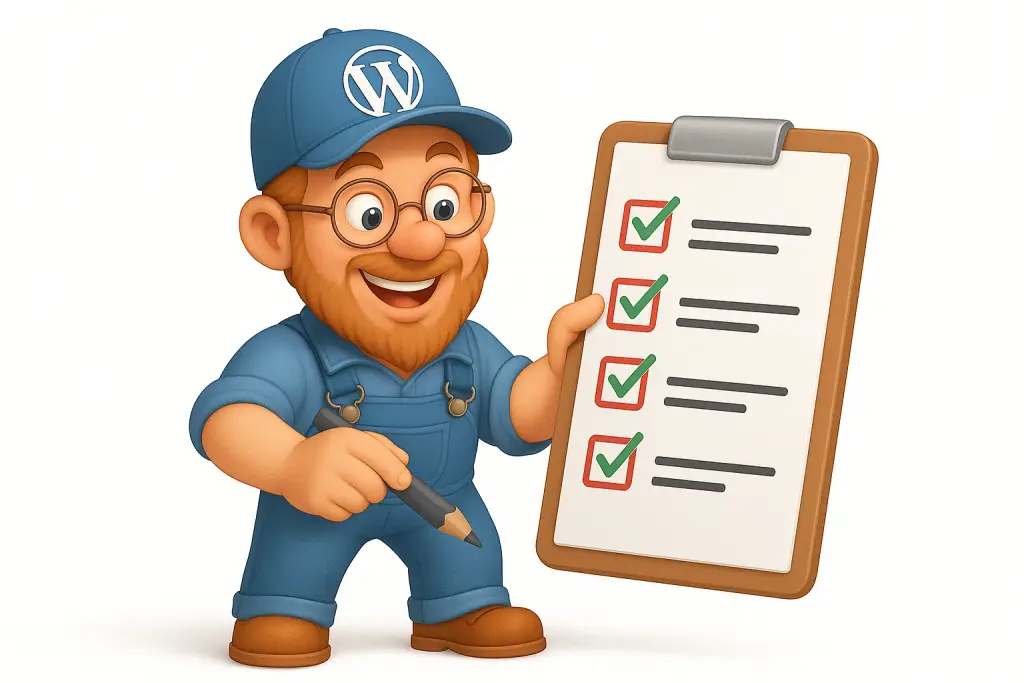
Your WordPress 6.9 Upgrade Checklist
Right, practical stuff. When December 2nd rolls around, here's what you should actually do:
Before Updating (Essential)
- Make a complete backup – Both database and files
- Check plugin compatibility – Visit plugin websites for 6.9 compatibility news
- Verify theme compatibility – Especially important for custom themes
- Test on staging site first – If you've got one (you should have one)
- Schedule time for testing – Don't update five minutes before a client call
During the Update
- Clear your cache – Both plugin cache and browser cache
- Update plugins first – Then WordPress core
- Update theme last – After everything else is updated
- Don't panic if things look weird initially – Clear cache and refresh
After Updating (Critical)
- Test everything thoroughly
- Check all pages load correctly
- Test contact forms and checkout processes
- Verify images display properly
- Check mobile responsiveness
- Clear all caches again – Yes, really
- Run a quick speed test – Compare before and after
- Check for PHP errors – Look in your server error logs
- Test the Command Palette – Press Ctrl+K and enjoy
If Something Breaks
- Don't panic – Most issues are easily fixable
- Restore from backup – If things are properly broken
- Check for plugin conflicts – Disable plugins one by one
- Contact your host – Good hosts help with this stuff (we certainly do)
- Search for solutions – Chances are someone else hit the same issue
What Comes After WordPress 6.9
WordPress 6.9 is the last major update of 2025. After this, the WordPress team shifts focus to what's next—likely WordPress 7.0 in 2026, though that's still being planned.
What's Probably Coming Next
Based on current development discussions (and reading way too much WordPress development blog content), expect:
- More AI integration – Now that the API foundation exists
- Improved performance monitoring – Better tools to identify slow pages
- Enhanced security features – Especially around plugin vulnerabilities
- Better mobile editing – The Block Editor on phones is still awkward
- Improved collaboration tools – Building on what 6.9 started
But that's all speculation. For now, focus on getting ready for WordPress 6.9.

The Bottom Line on WordPress 6.9
WordPress 6.9 represents something important: the WordPress team listening to what people actually need rather than just adding features that sound impressive.
What You'll Actually Use
- Command Palette – You'll use this daily once you learn
Ctrl+K - Block comments – If you work with a team, this solves a genuine problem
- Hiding content – Dead useful for seasonal stuff or work-in-progress
- Faster back button – Everyone benefits, nobody has to configure it
- New Accordion block – Finally stops requiring a plugin for FAQs
What You Can Ignore
All the technical stuff about APIs and developer tools. Unless you're building plugins or custom functionality, you don't need to understand it. It's like knowing how your car engine works—nice if you're interested, irrelevant for driving to Tesco.
Action Plan
- Now (October): Bookmark this article, maybe have a play with the beta if you're curious
- 2nd December: WordPress 6.9 releases—don't update yet
- Mid-December: Update after the initial rush and any quick fixes
- Before updating: Make sure you've got a backup and check security considerations
- After updating: Learn the Command Palette shortcut and thank me later
WordPress 6.9 represents thoughtful development—improving what exists whilst building foundations for what's next. And honestly? That's exactly what mature software should do.
If you're after hosting that actually takes advantage of these improvements rather than just hoping for the best, have a look at 365i. We'd be delighted to show you what properly optimised WordPress hosting can do for your sites.
Frequently Asked Questions
When will WordPress 6.9 actually be released?
Should I update my site immediately on December 2nd?
Will WordPress 6.9 break my website?
What's the keyboard shortcut for the Command Palette?
Will my site automatically get faster with WordPress 6.9?
Do I need to understand the AI features in WordPress 6.9?
What PHP version do I need for WordPress 6.9?
Are the new blocks in WordPress 6.9 actually useful?
Running WordPress sites that need to perform brilliantly? Check out our WordPress Hosting and WordPress Turbo Hosting services optimised for WordPress 6.9 and beyond.