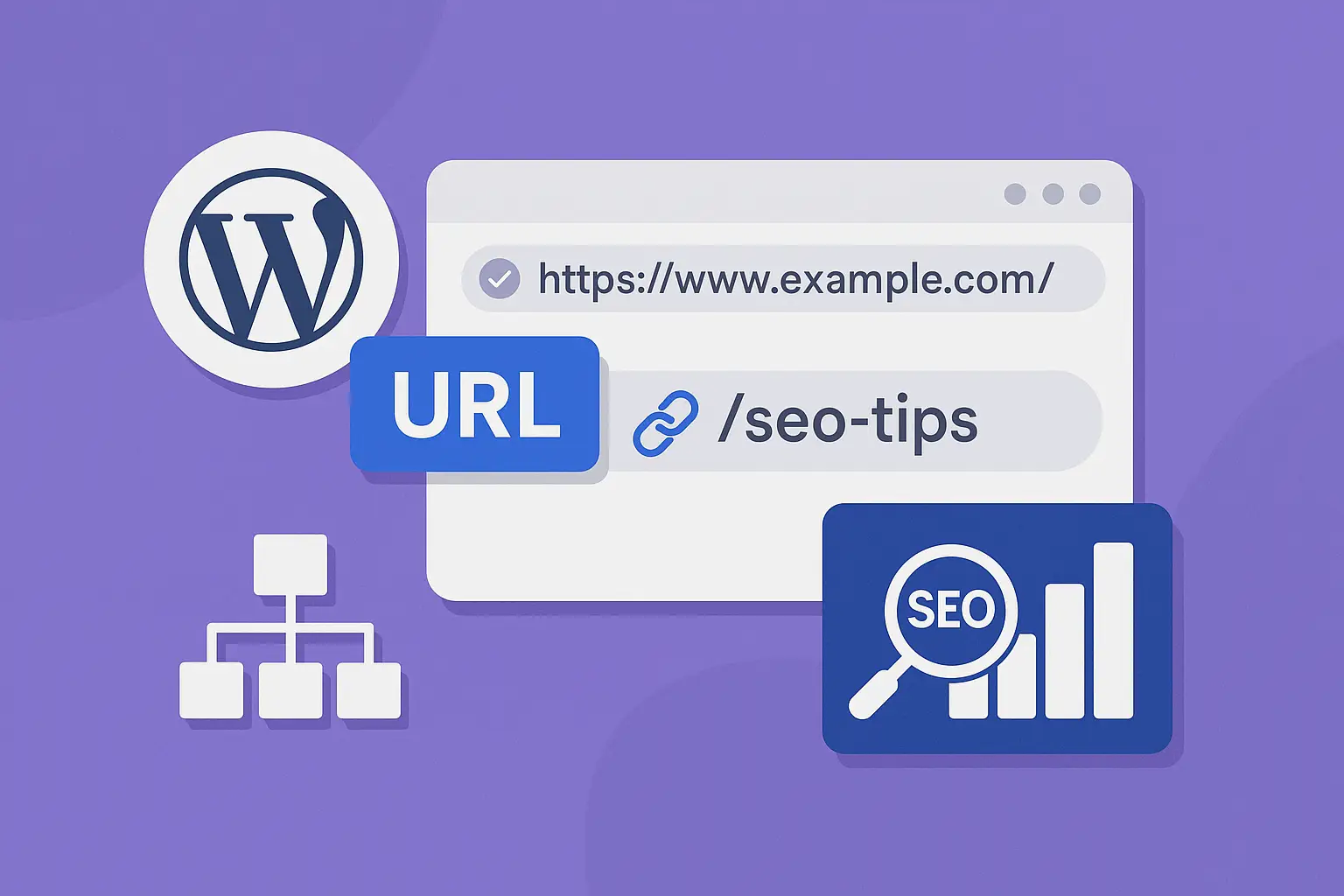
Ever clicked on a website link and found yourself staring at a URL that looks like it was written by a drunk robot? You know the type — a jumbled mess of numbers, question marks, and random characters that tell you absolutely nothing about what you're about to see.
That, my friends, is what happens when you don't sort your WordPress Permalinks. And if you're running a WordPress site without giving them a second thought, you might be shooting yourself in the digital foot.
Let's have a proper natter about permalinks — what they are, why they matter, and how to set them up without losing your marbles. I promise this won't be as dry as it sounds. In fact, by the end, you'll be a permalink pro, showing off your fancy URL structures to anyone who'll listen (prepare for some glazed-over eyes at your next dinner party).
What Are WordPress Permalinks Anyway?
In the simplest terms, permalinks are the permanent URLs to your posts, pages, and other content on your WordPress site. They're the web addresses people type in to find your stuff, the links they share, and what Google uses to index your content.
By default, WordPress gives you some pretty awful-looking permalinks:
https://yoursite.com/?p=123
Yuck. Doesn't exactly scream "click me!" does it?
This is what happens when you leave the permalink setting on "Plain" — which, let's be honest, should be renamed to "Plain Awful." It's like sending your content out into the world wearing mismatched socks and bedhead. Sure, it functions, but it's not making any friends.
Why Should You Care About WordPress Permalinks?
Before we dive into the how-to, let's tackle the "why bother?" Because trust me, this matters more than you think.
- SEO Brownie Points: Search engines use your URLs to understand what your content is about. A clear, descriptive URL is like handing Google a map to your content.
- Human-Friendly Navigation: When someone sees a link to "yoursite.com/best-wordpress-hosting-2025" they know exactly what they're getting. Compare that to "yoursite.com/?p=123" — it's like trying to guess what's in a wrapped present.
- Sharing Simplicity: Clean URLs are more likely to be clicked when shared on social media or in emails.
- Reduced Bounce Rates: When people can see what they're clicking on, they're less likely to bounce away immediately.
As our mate Steve Goddard (one of our happy clients) might say:
"Since migrating to 365i and cleaning up our website structure, including permalinks, we've seen dramatic improvements. The support from Mark fixed persistent issues that had been around for ages. Sorting our permalinks was part of the best business decision we've made in years!" - Steve Goddard
Permalink Structure Options in WordPress
Right, let's get to the meat and potatoes. In WordPress, you'll find permalinks under Settings > Permalinks in your dashboard. You'll see several options that look like this:
![WordPress Permalink Settings]
The Basic Options
- Plain:
https://yoursite.com/?p=123
This is the default and, frankly, rubbish option. Avoid unless you have a very specific technical reason to use it. - Day and name:
https://yoursite.com/2025/03/31/sample-post/
Includes the date and post name. Good for news sites or blogs where the date matters. - Month and name:
https://yoursite.com/2025/03/sample-post/
Similar to above but only shows month and year. - Numeric:
https://yoursite.com/archives/123
Slightly better than Plain, but still not very descriptive. - Post name:
https://yoursite.com/sample-post/
The most popular choice for most websites. Clean, simple, and SEO-friendly. - Custom Structure: This is where the magic happens, and what most people don't properly understand.
The Custom Structure Option (AKA The Good Stuff)
This is where many WordPress users get a bit wobbly-kneed. But it's actually not that complicated, and this is where you can really optimise your URLs for both users and search engines.
The custom structure uses "tags" that WordPress replaces with actual values. Here are the most useful ones:
%year%- The year of the post (2025)%monthnum%- Month (01-12)%day%- Day (01-31)%hour%- Hour (00-23)%minute%- Minute (00-59)%second%- Second (00-59)%postname%- The post slug (the-post-title)%category%- The category slug%author%- The author username
You can combine these in almost any way you like. For example:
/%category%/%postname%/
This creates URLs like https://yoursite.com/wordpress-tips/mastering-permalinks/
I've had clients who thought they needed to include every tag available, creating monstrosities like:
/%year%/%monthnum%/%day%/%hour%/%minute%/%category%/%postname%/
Don't do this! It makes your URLs longer than the queue at Tesco on a Saturday afternoon.

The Optional Settings Most People Miss
Now, here's where things get interesting — the often-overlooked Optional settings beneath the main permalink structure.
Category and Tag Base
By default, WordPress creates URLs for your categories and tags that look like:
https://yoursite.com/category/your-category-name/
https://yoursite.com/tag/your-tag-name/
But — and this is a big but — you can change the words "category" and "tag" to whatever you want in the Optional section!
For example, if you run a recipes website, you might change "category" to "dishes" so your URLs look like:
https://yoursite.com/dishes/desserts/
Much more intuitive for your visitors!
Or if you're running a website about WordPress hosting (ahem, like our fantastic WordPress hosting services here at 365i), you might change "category" to "services" and "tag" to "features".
I once had a client who'd left their category base as "category" even though they were running a car parts website. We changed it to "parts" and their category URLs immediately made more sense. Little tweaks, big difference.
The Product Category Base (for WooCommerce)
If you're using WooCommerce, you'll see an additional option for the product category base. By default, this is "product-category", but changing it to something more relevant to your store can help both users and search engines.
For instance, if you sell clothing, you might change it to "clothing" or "apparel" so your URLs look like:
https://yoursite.com/clothing/mens/t-shirts/
instead of:
https://yoursite.com/product-category/mens/t-shirts/

How to Choose the Right WordPress Permalinks Structure
Let's be honest — there's no one-size-fits-all answer here. But I can give you some advice based on what works for different types of sites:
For Most Business Websites
The post name structure is usually best:
/%postname%/
It's clean, short, and focuses on the content. This is what we use for our agency hosting page and most of our service pages at 365i.
For Content-Heavy Blogs
Consider including the category:
/%category%/%postname%/
This helps organise your content and gives both users and search engines more context. You can see this approach in our blog post about why WordPress hosting with a free global CDN is a game changer.
For News Sites or Date-Sensitive Content
Including the date makes sense:
/%year%/%monthnum%/%postname%/
This signals to readers that the content is time-sensitive, like our post about 4 key takeaways from the WordPress in 2025 report.
The SEO Impact of Your Permalink Choice
According to Yoast SEO, one of the premier WordPress SEO plugins:
"The best permalink structure, from an SEO perspective, is the one that most clearly reflects the content and purpose of your site. Short, descriptive permalinks that contain your focus keywords are preferable, as they're more likely to be shared, clicked, and correctly indexed by search engines." - Yoast SEO Blog
Google's own John Mueller has stated:
"Having keywords in your URLs doesn't give you any bonus points with Google's ranking algorithms, but it does make it easier for users to recognize what the page is about." - Google Search Central Blog
In our experience at 365i, clients who switch to more logical permalink structures often see improvements in their overall site performance, just like Mark Roberts, another happy client:
"After the best part of 3 years agonising over what to do with an old website with Yell, and wanting a new site to reflect the new business name, in less than a week of speaking to Mark at 365i, everything is now pointing to a striking brand new website, with my domain name of my choice and at a very affordable price." - Mark Roberts
Common Permalink Pitfalls and How to Avoid Them
In my years of helping clients with their WordPress sites, I've seen some proper permalink disasters. Here are the most common ones:
1. Changing Permalinks on an Established Site Without Redirects
This is the digital equivalent of moving house without telling anyone your new address. If you change your permalink structure on an existing site, all your old URLs will break unless you set up proper 301 redirects.
The solution? Use a redirection plugin or add redirects to your .htaccess file. Our professional WordPress support can help with this tricky process.
2. Making URLs Too Long
I once saw a permalink structure that created URLs longer than the entire Lord of the Rings trilogy. Every word in the title, every category, subcategory, date, author... it was a mess.
Keep it simple. Google generally displays about 60 characters of your URL in search results, so brevity is your friend.
3. Using Special Characters or Spaces
WordPress will convert spaces to hyphens, but other special characters can cause issues. Stick to letters, numbers, and hyphens.
4. Forgetting to Update Internal Links
If you change your permalink structure, don't forget that any hard-coded internal links will need updating too.
WordPress Permalinks and Performance
Here's something many people don't realise — your permalink structure can affect your site's performance. How? Well, some structures require more database queries than others.
The most efficient structure from a performance perspective is actually the plain ?p=123 format (I know, I slated it earlier). But the performance difference is minimal on a well-optimised site, especially if you're using our turbo-charged WordPress hosting.
As Tania Salha, another of our clients, puts it:
"Great service, best prices! Fast to respond, Mark goes beyond duty to find solutions to any trouble. Highly recommend!" - Tania Salha
How to Implement Permalink Changes Safely
If you've decided your current permalink structure is about as useful as a chocolate teapot, here's how to change it without breaking your site:
- Back up your site. Seriously, do this first. Our secure hosting includes regular backups, but an extra one before making significant changes never hurts.
- Install a redirection plugin like Redirection or Simple 301 Redirects.
- Change your permalink structure in Settings > Permalinks.
- Set up redirects from old URLs to new ones.
- Update your sitemap and resubmit it to Google Search Console.
- Check your internal links and update any that use the old structure.
If this sounds like the kind of technical faff you'd rather avoid, our one-click WordPress installation sets up optimal permalinks from the start, and our support team can help with any necessary changes.

Final Thoughts: Permalinks Matter More Than You Think
I'll be honest — permalinks aren't the sexiest part of WordPress. They don't have the instant gratification of a new theme or the obvious impact of a fancy new plugin. But they're like the foundation of your house — you don't notice them until they're wrong, and by then, you've got a big problem on your hands.
Taking a few minutes to set up a sensible permalink structure when you first create your site can save you hours of headaches later. And if you're running an existing site with suboptimal permalinks, it might be worth the effort to change them properly.
As Lauren Jackson, one of our web development clients, said:
"Working with Mark was an absolute pleasure. He understood our vision for the Grange Transport website and brought it to life beautifully. His attention to detail, creativity, and responsiveness throughout the entire process was outstanding." - Lauren Jackson
That attention to detail includes getting the fundamentals right — like permalinks.
If you're struggling with WordPress SEO, permalinks, or just want a faster, more reliable hosting platform, check out our WordPress hosting packages or get in touch with our support team. We're always happy to help you get your site running at its best.
And remember, URLs are like first impressions — you only get one chance to make a good one!
Need help optimising your WordPress site? Our free WordPress 1-to-1 remote support can help you set up the perfect permalink structure for your specific needs. Just give us a call on +44 7785 326603 or email support@365i.co.uk.