
Last Tuesday, I found myself at 2AM — again — tweaking box shadow values like some sort of digital alchemist. You know the drill: box-shadow: 0px 4px... no wait, maybe 6px? Actually, let's try 2px...
Refresh. Sigh. Repeat.
My coffee had gone cold three times, and I'd somehow convinced myself that the perfect shadow for a simple button was worth missing sleep over. That's when it hit me — I'm definitely not the only mug doing this shadow dance every week.
So I built something to save us all from this madness: the 365i Box Shadow Generator. And honestly? It's become my favourite procrastination tool (in the best possible way).
The Great Shadow Struggle is Real
Here's the thing about box shadows — they're like seasoning. Get it right, and your design tastes like a Michelin-starred website. Get it wrong, and you've got the digital equivalent of putting ketchup on a Sunday roast.
I remember working on a client project last month where they wanted their cards to have "that floaty Google Material Design vibe." Easy enough, right? Wrong. Three hours later, I'd created shadows that looked more like someone had smudged charcoal under each element.
"The box-shadow property in CSS is used to give a shadow-like effect to the elements. It is one of the most popular CSS properties." — GeeksforGeeks
The problem isn't that shadows are rocket science — they're not. It's that getting them right requires this weird mix of mathematical precision and artistic flair. You need to understand:
- Horizontal offset (X-axis) - where the shadow sits left or right
- Vertical offset (Y-axis) - where it sits up or down
- Blur radius - how soft or sharp the shadow is
- Spread radius - how far the shadow extends
- Colour and opacity - the shadow's appearance
Each tweak affects the others. It's like trying to tune a guitar while someone's playing it.
Why I Actually Built This Thing
The eureka moment came during a particularly frustrating client call. They kept saying their website buttons looked "too flat" but couldn't articulate what they wanted. I found myself frantically adjusting shadow values during the screen share — not my finest professional moment.
That's when I realised: what if I could just drag a handle around and see the shadow move in real-time? What if changing the blur was as simple as scrolling a mouse wheel?
Enter the Box Shadow Generator — my answer to shadow-induced insomnia.
Real-Time Visual Feedback
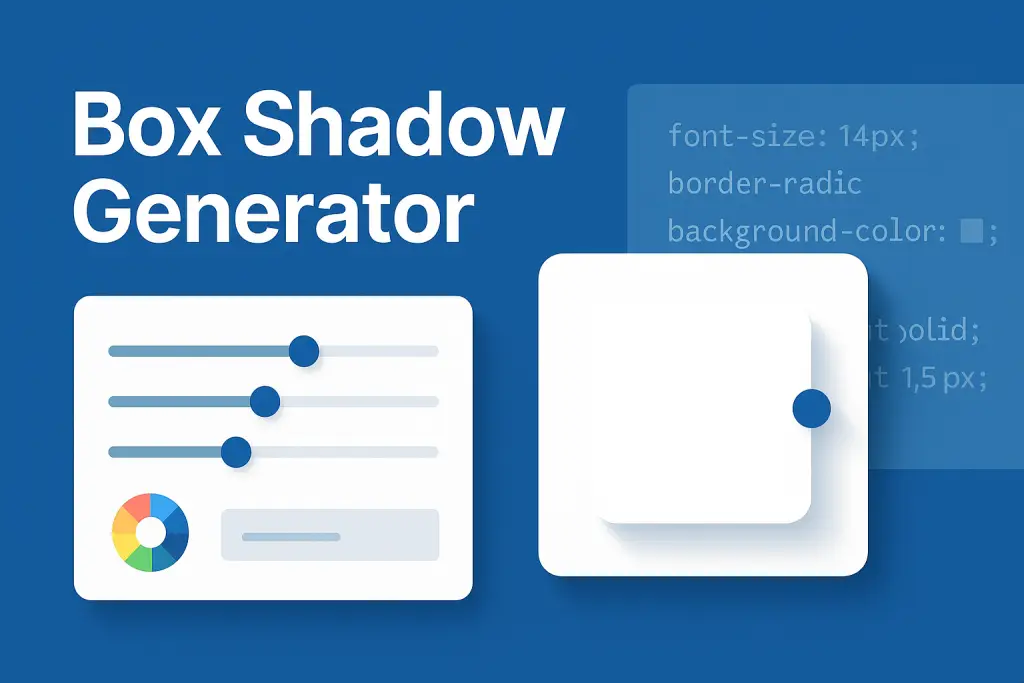
The red handle in the preview area isn't just cute — it's genuinely revolutionary for shadow work. You can literally see where your shadow sits and drag it around like you're repositioning a lamp. No more guessing games with negative values.
Preset Library That Actually Makes Sense
I've included shadow presets that I actually use in real projects:
- Material Design elevations — because Google knew what they were doing
- Neumorphic styles — for when you want that soft, pressed-in look
- Subtle shadows — perfect for cards and panels
- Dramatic effects — when you need something that pops
Multiple Output Formats
CSS, SCSS, Tailwind utilities, CSS variables — whatever your workflow, just click and copy. No more mental gymnastics converting between formats.
How to Use The Box Shadow Generator
Step 1: Start with a Preset
Don't start from zero — that's madness. Pick a preset that's close to what you want. I usually start with Material Design Elevation 2 for most cards.
Step 2: Drag the Handle
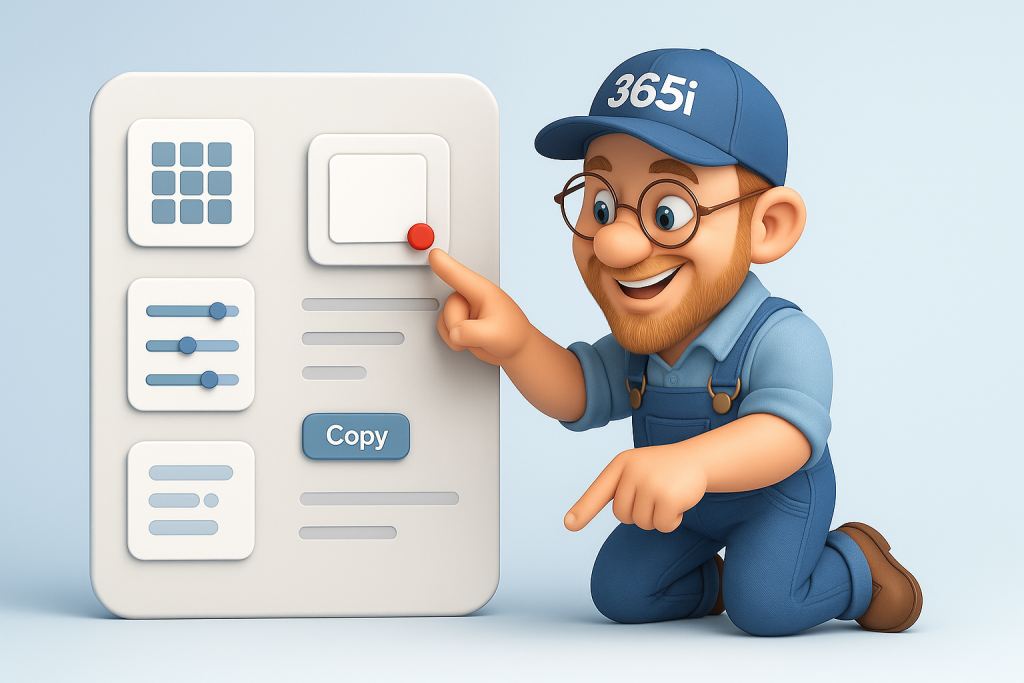
This is the fun bit. Grab that red handle and move it around. You'll immediately see how offset values affect the shadow's position. It's oddly therapeutic.
Step 3: Fine-Tune with Sliders
Adjust blur for softness, spread for size, and opacity for intensity. The sliders give you precise control without the trial-and-error nonsense.
Step 4: Copy and Paste
Switch to your preferred format (CSS, SCSS, whatever) and click to copy. Done. No typing required.

Pro Tips from the Trenches
Less is Usually More
I've seen developers get carried away with dramatic shadows everywhere. Your website shouldn't look like it's having a film noir moment unless that's genuinely the vibe you're going for.
Consistency is King
Pick 2-3 shadow styles and stick with them. I usually have one subtle shadow for cards, one medium shadow for elevated elements, and one dramatic shadow for modals or popups.
Test on Different Backgrounds
A shadow that looks perfect on white might disappear on light grey. Always test your shadows against the actual backgrounds they'll sit on.
Animation is Your Friend
Add transition: box-shadow 0.3s ease; to your elements. Subtle shadow changes on hover feel incredibly polished.

The Technical Bits That Matter
CSS Variables for Theming
The generator outputs CSS variables format — perfect for dark/light theme switching. You can change your entire shadow scheme by updating a few root variables.
Performance Considerations
Box shadows can be expensive to render, especially with large blur values. Keep blur under 20px for most use cases, and avoid shadows on elements that animate frequently.
Accessibility Matters
Don't rely solely on shadows to convey information. They should enhance your design, not be the primary way users understand your interface hierarchy.
Beyond Basic Shadows
Layered Shadows
You can stack multiple shadows by separating them with commas. Try combining a subtle ambient shadow with a sharper directional one — it's the secret sauce for truly polished designs.
Inset Shadows
The generator includes an inset toggle. These are brilliant for creating pressed button states or recessed panels — just don't overdo it.
Coloured Shadows
Black isn't your only option. Try subtle blue shadows for a cooler feel, or warm browns for a more organic look. The colour picker makes experimenting painless.
Connecting Your Shadow Game to the Bigger Picture
Great shadows are just one piece of the design puzzle. They work best when combined with other thoughtful design decisions:
- Semantic HTML structure — check out our guide on creating accessible FAQ accordions
- Performance optimisation — shadows mean nothing if your site loads slowly, so consider our WordPress speed optimisation tips
- AI-powered content — pair your polished design with smart content using our AI FAQ Generator
- Proper hosting — all the shadows in the world won't help if your site's on rubbish hosting — that's where our WordPress hosting comes in
- SEO optimisation — beautiful shadows deserve to be seen, so make sure your content ranks with techniques from our Position Zero SEO guide

Common Mistakes I've Made (So You Don't Have To)
The Blur Disaster
I once set a blur radius to 50px thinking it would look "dreamy." It looked like someone had sneezed on the screen. Keep blur values reasonable — usually under 20px.
The Heavy Shadow Syndrome
Early in my career, I thought more opacity meant more professional. Wrong. Heavy, dark shadows make your design feel claustrophobic. Aim for 10-30% opacity for most situations.
The Inconsistent Shadow Family
Using different shadow styles all over one website is like wearing stripes with polka dots — technically possible, but why would you? Stick to a consistent shadow system.
The Forgotten Mobile Test
Shadows that look subtle on desktop can appear heavy on mobile screens. Always test your shadows across different devices and screen sizes.

What is the Box Shadow Generator and who is it for?
The Box Shadow Generator is a tool designed to help users master CSS shadows efficiently. It is beneficial for web developers and designers looking to enhance their websites with visually appealing shadow effects.
How can the Box Shadow Generator help in saving time and effort in tweaking box shadows?
The Box Shadow Generator streamlines the process of creating shadows by providing presets, drag-and-drop controls, and real-time visual feedback. This saves users time and effort that would otherwise be spent manually adjusting shadows.
What are the key features of the Box Shadow Generator?
The Box Shadow Generator offers real-time visual feedback, a preset library with multiple output formats, CSS variables for theming, performance considerations, accessibility enhancements, layered, inset, and colored shadows, along with tips to optimize shadow usage.
How does the Box Shadow Generator provide real-time visual feedback?
The Box Shadow Generator instantly displays the changes made to shadow properties, allowing users to see the effects in real-time as they adjust settings. This immediate feedback helps in visualizing and fine-tuning the desired shadow effects efficiently.
What are the common mistakes to avoid when using box shadows?
Common mistakes to avoid when using box shadows include overusing shadows, neglecting consistency, not testing shadows on different backgrounds/devices, and overlooking performance and accessibility considerations. The Box Shadow Generator provides guidance to prevent these errors.
How can CSS variables be used for theming with the Box Shadow Generator?
CSS variables in the Box Shadow Generator allow for easy theming by defining shadow properties once and reusing them across the design. This simplifies the process of maintaining consistent shadow styles throughout the website.
What are the performance considerations when using box shadows in web design?
When using box shadows, it's important to consider their impact on performance. Excessive or complex shadows can slow down page loading times. The Box Shadow Generator educates users on optimizing shadow effects to maintain performance while enhancing the design.
How does the Box Shadow Generator facilitate testing on different backgrounds and devices?
The Box Shadow Generator enables users to test shadow effects on various backgrounds and devices to ensure consistent appearance across different viewing conditions. This feature helps in creating shadows that adapt well to different contexts.
What are the best practices for using layered, inset, and colored shadows in web design?
Best practices for using layered, inset, and colored shadows involve maintaining subtlety, balancing shadow intensity, and ensuring they complement the design without overpowering it. The Box Shadow Generator guides users on implementing these shadow types effectively.
What are the benefits of using presets and drag-and-drop controls in the Box Shadow Generator?
The Box Shadow Generator's presets and drag-and-drop controls offer convenience and ease of use for quickly applying predefined shadow styles or customizing them intuitively. This feature enhances workflow efficiency and simplifies the shadow creation process.
How can the Box Shadow Generator help in enhancing understanding of CSS shadow properties and their impact on design?
By providing a visual interface and interactive controls, the Box Shadow Generator helps users grasp the relationship between CSS shadow properties like offsets, blur radius, and color, leading to a deeper understanding of how these properties influence design aesthetics.
What are the pro tips for using the Box Shadow Generator effectively?
Pro tips for using the Box Shadow Generator include keeping shadow effects subtle, ensuring consistency across elements, testing shadows on different backgrounds, leveraging animations judiciously, and avoiding common mistakes like excessive blur or inconsistent shadow styles.
Learn more about our Free AI FAQ Generator.
What's Next for Your Shadow Journey
Here's the thing — the Box Shadow Generator isn't just a tool, it's training wheels for understanding how shadows actually work. Use it enough, and you'll start to intuitively know that you need more Y-offset for depth, or less blur for crispness.
The real magic happens when you stop seeing shadows as decorative afterthoughts and start using them as functional design elements. They can guide the user's eye, create visual hierarchy, and add that subtle polish that separates amateur websites from professional ones.
Ready to Ditch the Shadow Struggle?
Next time you're staring at your CSS at 2AM, wondering why your shadows look rubbish, remember this post. Pop over to the Box Shadow Generator, drag that handle around, and get back to the fun parts of web development.
Your future self (and your coffee consumption) will thank you.
P.S. — If you end up using the generator for a project, I'd love to see what you create! Drop me a line through our contact page — I'm always curious about how people use the tools we build.