
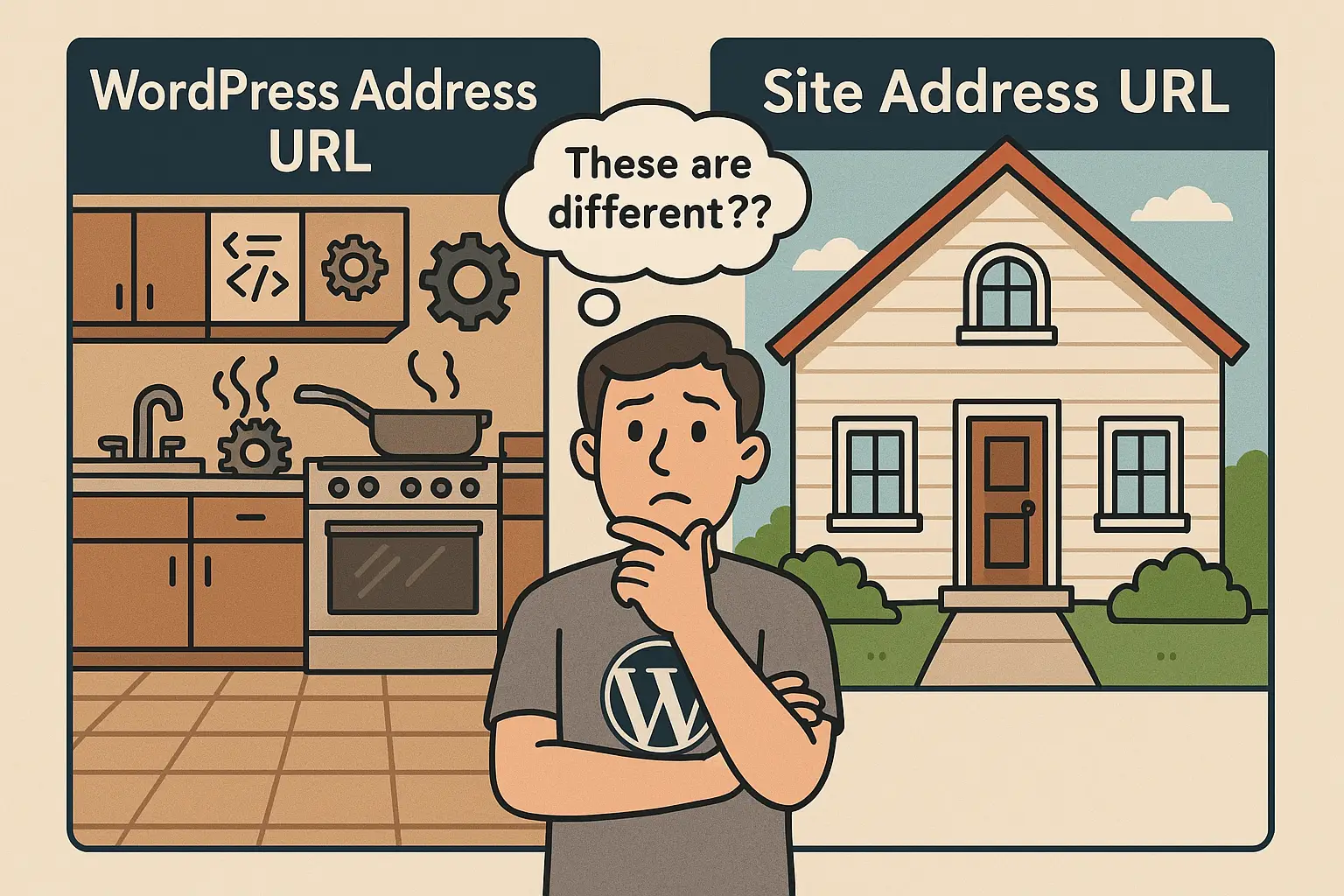
Listen, I've seen that look before. That puzzled squint when you're staring at WordPress General Settings wondering what on earth is the difference between "WordPress Address (URL)" and "Site Address (URL)". And why in the digital universe would there be TWO different URL settings?
Welcome to what I affectionately call the "WordPress Twilight Zone" – that mysterious realm where even seasoned developers occasionally throw their hands up and mutter colorful phrases I can't repeat in a professional blog post.
Truth be told, I've spent more late nights than I care to admit (fueled by questionable amounts of coffee) helping panicked clients who accidentally turned their websites into digital pretzels by tweaking these settings. My personal record? A 2 AM rescue mission for a client who somehow managed to redirect their entire business site to a GIF of a dancing hamster. Don't ask me how. WordPress finds a way.
Quick Navigation
- Who This Guide Is For
- The Quick Version
- The Restaurant Analogy
- Normal vs Advanced Setups
- Warning: Danger Zone
- How to Change URLs
- Real-World Example
- Troubleshooting Guide
So pour yourself something soothing, and let's untangle this URL mystery in plain English – with some real-world examples of when you might actually want them to be different, and when you should leave them alone for the love of all things digital.
If you're new to WordPress, you might also want to check out our Creating a WordPress Website: A Beginner's Guide for more foundational knowledge. Consider it your WordPress training wheels before we dive into this URL rollercoaster.
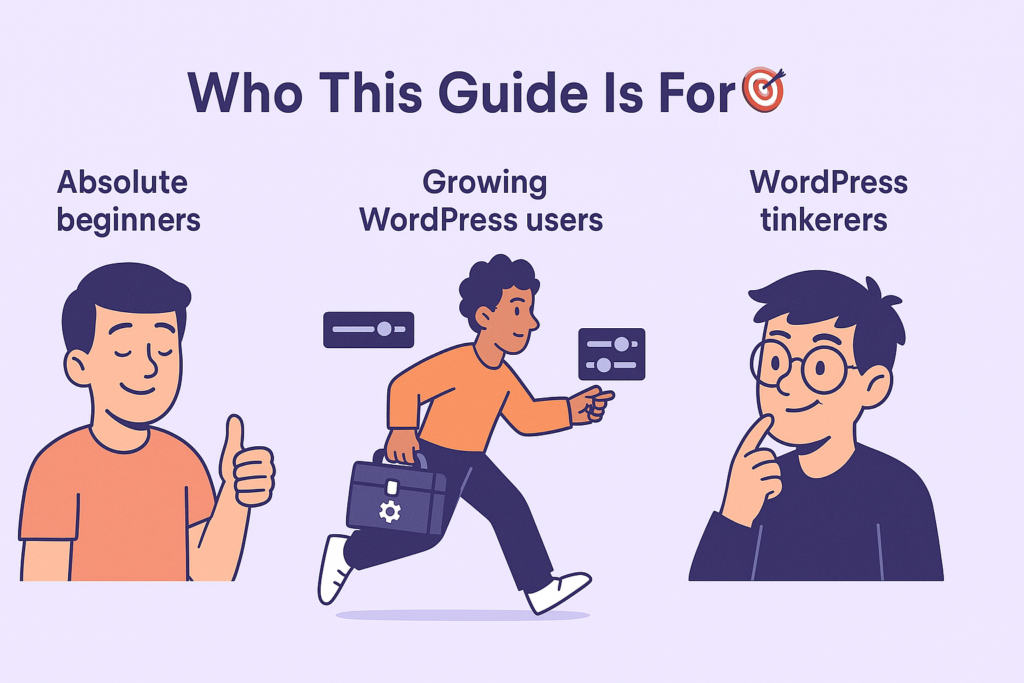
Who This Guide Is For 🎯
Absolute beginners: First time in WordPress? Take a deep breath. For 99% of you, these settings should be identical, like identical twins that actually get along. Don't touch them, and you'll be fine. I promise.
Growing WordPress users: You've mastered adding posts and changing themes, and now you're eyeing those advanced settings like a kid discovering the household toolbox. This guide will help you understand these settings before your site pulls a disappearing act that would make Houdini proud.
WordPress tinkerers: You know just enough to be dangerous (I see you nodding). For those ready to try advanced configurations, I'll show you legitimate reasons to change these settings without requiring an IT exorcism afterward.
The Quick Version - Just the Basics
WordPress Address URL = Where your WordPress files live (the technical backstage area) Site Address URL = Where visitors go to see your website (the public Broadway show)
For most people, these are identical, and that's perfectly fine! If you're just starting with WordPress, keep them the same and save yourself the kind of headache that makes you question your life choices. 😊
I once had a client who insisted on "optimizing" these settings despite having zero technical background. Three hours and one emergency site recovery later, he sheepishly admitted that perhaps some settings are best left alone. Spoiler alert: his site ended up with identical URLs after all that drama.
If you're wondering why your WordPress site seems slow regardless of URL configuration, our article on Why 365i's Free Global CDN Solution Outperforms the Competition might be what you need.
Think of It Like This... 🏠
Let me drop a metaphor that helped one of my technically-challenged clients finally go "Aha!" at 11 PM after I'd explained this concept approximately 17 different ways:
Imagine your WordPress site is like a fancy restaurant. The WordPress Address URL is the kitchen where all the magic happens—chefs chopping, pots bubbling, the occasional fire extinguisher being deployed. Visitors don't usually see this part. The Site Address URL is the elegant dining room where customers actually enjoy their meals, blissfully unaware of the kitchen chaos.
Usually, the kitchen and dining room are in the same building—makes sense, right? But occasionally, a restaurant might have its kitchen in one location and serve food in another (think food trucks prepared in a commercial kitchen or catering services). That's when you'd have different WordPress Address and Site Address URLs.
I've honestly used this explanation so often that I started carrying pictures of kitchens and dining rooms on my phone. The things we do for our clients... 🙄
A Bit More Detail (If You're Curious)
WordPress Address URL - The Home URL
This is the address where your actual WordPress installation lives. It's where all your WordPress files hang out — the admin area, plugins, themes, and all that behind-the-scenes digital voodoo that makes your site work.
Think of it as WordPress's home address. When WordPress wakes up in the morning and checks its mail, this is where it gets delivered. When you're logging into the dashboard, this URL is what the system uses as its base.
Site Address URL - The Site URL
This is what your visitors type into their browsers to see your website. It's the digital equivalent of your business card address—the place where the magic happens as far as your visitors are concerned.
Every time I explain this to new clients, I can see the exact moment when their eyes either light up with understanding or glaze over completely. There's rarely an in-between. For those in the latter category, I usually just say "keep them the same" and move on to discussing more exciting things... like font choices. 😏
Normal Setup: When Both URLs Are The Same
For most WordPress installations (I'm talking 95% of sites out there), these two URLs are identical. If your WordPress installation is at https://example.com/ and visitors also go to https://example.com/ to see your site, then both settings should be https://example.com/.
This is the standard setup, and if you're just getting started with WordPress, this is what you want. No need to complicate things! I once had a client who was convinced they needed different URLs "for SEO purposes" despite having a simple blog. After a 20-minute explanation and one near-disaster later, they sheepishly agreed that identical URLs were just fine. Sometimes simpler really is better!

Advanced Stuff: When You Might Want Different URLs
Note: This section is for more experienced WordPress users or those who enjoy living dangerously. If you're new to WordPress, you can bookmark this for later, perhaps for that exciting day when you decide website configuration is more fun than Netflix.
There are actually a few legitimate reasons why you might want these URLs to be different. I promise these aren't made up – I've implemented all of these setups for clients who had specific needs (and occasionally for clients who just wanted to feel special):
1. WordPress in a Subdirectory But Website at Root
This is probably the most common reason. Maybe you want to keep WordPress tucked away in a tidy little folder, but have your website appear at the main domain.
Example setup:
- WordPress Address URL:
https://example.com/wordpress - Site Address URL:
https://example.com
With this configuration, all your WordPress files live in a /wordpress subdirectory, but visitors just go to your main domain to see the site. Clever, right?
I set this up for a client who had multiple web applications running on the same domain and wanted to keep everything organized. He called me a "folder wizard" afterward, which I promptly added to my business cards. Not really, but I considered it.
Why do this? It keeps your server's root directory nice and clean, and some folks find it more organized. It can also make migrating WordPress easier in some cases. Plus, it gives you tech bragging rights at particularly dull dinner parties.
2. Development or Staging Environments
When you're developing a site or testing major changes, you might have a development copy of the site with a different URL.
Example setup:
- WordPress Address URL:
https://dev.example.com - Site Address URL:
https://example.com
This tells WordPress that while the system files are on the development domain, links to pages and posts should still point to the live site. This can be useful during certain types of migrations or development workflows.
I use this setup regularly when rebuilding client sites. It's like renovating a house while the owners are still living in it – they get to keep using the old place while you're secretly building their dream home next door.
3. Multisite Subdomain Installations
If you're running WordPress Multisite with subdomain installations, these settings help WordPress understand how to structure URLs for the network.
This one's a bit like managing a restaurant chain instead of a single location. Each restaurant (site) needs its own dining room address, but they might all be managed from a central kitchen.
4. Enhanced Security Setups
Some security-conscious folks set up their WordPress admin area on a completely different subdomain, sometimes even with extra security measures.
Example setup:
- WordPress Address URL:
https://admin.example.com - Site Address URL:
https://example.com
This can make it harder for potential attackers to even find your login page, adding an extra layer of obscurity (though remember, security by obscurity alone isn't enough!).
True story: I once had a client who was so paranoid about security that he wanted his admin URL to be a completely different domain that looked unrelated to his main site. It was like the digital equivalent of wearing a fake mustache and sunglasses to collect your mail. Did it help? Probably not as much as proper security practices, but it did make him feel like James Bond, so there's that.
For a more comprehensive approach to WordPress security, check out our guide on 6 WordPress Security Plugins You Don't Need with 365i Hosting.
A REAL CAUTION - Changing These Can Break Your Site!
Before you even think about changing these settings, here's a friendly but serious warning: changing these URLs incorrectly is one of the fastest ways to lock yourself out of your WordPress site.
I've seen more panicked clients than I can count who changed these settings, clicked save, and then frantically called me because their site suddenly vanished faster than free donuts in an office kitchen. Not fun!
My favorite support call began with: "I just changed one little setting and now my website is showing me something in Egyptian hieroglyphics." It wasn't Egyptian, it was the white screen of death with PHP errors, but I admired the creative description.
"Changing your WordPress URLs without understanding what you're doing is like trying to rewire your house while standing in a puddle. It might work out, but it's a risk you shouldn't take lightly." - Mark, 365i Web Hosting
For beginners: If you're not 100% sure what you're doing, please don't experiment with these settings. There's rarely a reason for most website owners to change them. Think of these settings as the "big red button" of WordPress – impressive to look at, but not something you want to press without a really good reason.
If you do need to change these settings, consider:
- Backing up your site first (seriously, ALWAYS do this – it's like putting on a parachute before jumping out of a plane, not optional)
- Understanding exactly what you're trying to accomplish (vague objectives lead to specific disasters)
- Having a recovery plan if things go sideways (aka "the digital life raft")
- Or better yet, getting professional help from someone who's done it before and doesn't break into a cold sweat at the thought
And while we're on the topic of keeping your WordPress site safe, you might want to read our guide on WordPress Security Risks & Maintenance: How to Protect Your Website to prevent other common issues.
How to Change These Settings (If You Really Need To)
Note: This section is for those who have a specific reason to change these settings and understand the risks involved. If you're just browsing for fun, consider this the "advanced skiing slope" of the article – observe but don't attempt without proper training.
There are several ways to change these settings, in ascending order of technical difficulty and descending order of "oh no, what have I done" panic:
Method 1: Through the WordPress Admin - Easiest but Riskiest
- Go to Settings → General
- Update the WordPress Address and/or Site Address
- Save Changes
- Cross fingers (not kidding – I've actually watched clients physically do this while clicking "Save")
I call this the "cliff diving" approach – quick, straightforward, but with the highest potential for disaster. It's all fun and games until your admin area disappears.
Method 2: Directly in the Database - For When You're Locked Out
- Access your database via phpMyAdmin (usually through your hosting control panel)
- Find the
wp_optionstable (the prefix might be different if you customized it) - Look for the
siteurlandhomeoptions - Update their values
- Save changes
- Possibly age 5 years in the process
I like to call this the "digital surgery" approach. You're bypassing the normal interfaces and going straight to the database heart of WordPress. It feels extremely technical (even if it's not that complicated), and you'll get major geek points with your friends when you casually mention, "Oh yeah, I had to manually update the wp_options table the other day." Just don't mention how many YouTube tutorials you watched first.
Method 3: In wp-config.php - Most Reliable
Adding these lines to your wp-config.php file will override the database settings:
define('WP_HOME', 'https://example.com');
define('WP_SITEURL', 'https://example.com/wordpress');
This method is particularly useful because:
- It works even if you can't access the admin area
- It prevents accidental changes through the admin interface
- It can be environment-specific if you use different config files for development/staging/production
This is my personal favorite method, and the one I use for clients who might accidentally "fix" things that aren't broken. It's like putting child locks on the cabinet with the cleaning supplies. Sure, they could still get in there if they really tried, but it prevents casual mishaps.
I once had a client who managed to change their URLs every time they tried to update their tagline. To this day, I have no idea how they accomplished this feat, but wp-config.php definitions saved both their website and my sanity.
Real-World Example: One of Our Client Success Stories
Last year, we helped a client who wanted to make their WordPress site more secure while also improving organization on their shared hosting account. They had multiple applications running in different subdirectories, and WordPress was making their root directory look like my teenager's bedroom—absolute chaos.
The client initially described their hosting setup as "digital spaghetti," which was both accurate and concerning. After a thorough assessment (and a lot of sympathetic nodding on my part), we implemented a plan.
We moved all the WordPress files to /wp but kept the website appearing at the main domain. The transition was seamless for visitors, but behind the scenes, everything became much more organized and easier to maintain.
Their setup became:
- WordPress Address URL:
https://clientsite.com/wp - Site Address URL:
https://clientsite.com
The client reported that backups became easier to manage, and they found it simpler to identify which files belonged to WordPress versus their other applications. This approach is particularly helpful when combined with our Website Time Machine: 365i's Timeline Backup feature for even more robust site protection.
The best part? The client told me they finally slept well at night knowing their website wasn't a tangled mess anymore. Nothing like WordPress organization as a sleep aid!
WordPress URL Troubleshooting Guide
This handy reference might save your bacon if you've already made changes and something's gone wrong! Pin it, bookmark it, or tattoo it on your forearm – whatever helps in a crisis.
Symptom: Clicking links takes you to the wrong URL
Likely cause: Site Address URL is incorrect Solution: Fix the Site Address URL setting Real-life comparison: It's like your GPS sending everyone to the wrong address for your birthday party. Embarrassing, but fixable.
Symptom: Images and resources won't load, but content appears
Likely cause: WordPress Address URL is incorrect Solution: Fix the WordPress Address URL setting Real-life comparison: It's like the text of your book arrived, but all the pictures are missing. You get the story, but none of the visuals.
Symptom: Infinite redirect loop
Likely cause: URL settings conflict with server configuration Solution: Check your .htaccess file and URL settings for inconsistencies Real-life comparison: This is the digital equivalent of those revolving doors where you go around in circles until someone rescues you. Not fun.
Symptom: Can't access wp-admin at all
Likely cause: WordPress Address URL changed incorrectly Solution: Update the setting via database or wp-config.php Real-life comparison: You've locked yourself out of your house and the spare key is... inside the house. Time to call a professional.

The Bottom Line
For most WordPress users (especially beginners), keeping these two URLs identical is the simplest and safest approach. There's no need to complicate things when a standard setup works perfectly fine. Remember the KISS principle: Keep It Simple, Siteurl. (Okay, I tweaked that acronym a bit.)
For more advanced users, understanding the difference gives you flexibility for specialized setups when needed. Just proceed with caution, backups, and maybe a stress ball nearby.
I've found that about 90% of the time when clients think they need different URLs, they actually don't. It's like people who think they need a food processor when a knife would do just fine. Sure, the food processor is fancy, but it's one more thing to clean (or in WordPress terms, one more thing that can break).
Speaking of which, if your current WordPress site feels sluggish, our article on Unleash Your Website's Full Potential with WordPress Turbo Hosting might be just what you need to supercharge your performance.
Need Help With Your WordPress Site?
At 365i, we provide WordPress-optimized hosting with free migration, daily backups, and expert support for all these technical bits that can be confusing. Our free Global CDN also ensures your WordPress site loads lightning-fast anywhere in the world.
If you're looking to really kick your site's performance up a notch, check out our popular article on Kick-Ass Hosting or learn about One-Click Heaven for the easiest WordPress setup experience ever.
Got questions about WordPress URLs or need help configuring your site correctly? Get in touch with our friendly support team!